
Automatic Price Difference Discount
Automatic Price Difference Discount is available under the Advanced Discount Module. To use this feature, the Advanced Discount Module must be enabled for the business.
Automatic Price Difference Discount is used when the cashier edits the selling price in POS and gives a lower price than the default selling price.
Instead of changing the product price directly, the system will automatically convert the price difference into a discount.
1. Enable the Feature
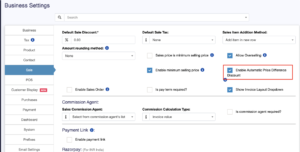
Go to: Business Settings → Sale
Enable this option: Enable Automatic Price Difference Discount Then save the business settings.
2. How It Works in POS
Example product:
| Field | Amount |
|---|---|
| Default Selling Price | Rs 200.00 |
| Cashier Entered Selling Price | Rs 190.00 |
| Price Difference | Rs 10.00 |
The system automatically calculates: Default Selling Price - Entered Selling Price = Discount
Rs 200 - Rs 190 = Rs 10
3. POS Step-by-Step
Step 1: Add Product to POS
Cashier adds the product to POS.
Example:
150g garlic mixture
Default price: Rs 200.00
Step 2: Click Edit Selling Price
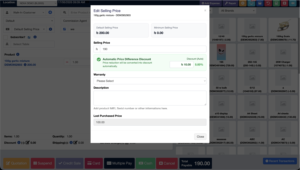
Open the Edit Selling Price popup.
The popup shows:
| Field | Value |
|---|---|
| Default Selling Price | Rs 200.00 |
| Minimum Selling Price | Rs 0.00 |
| Selling Price | Editable field |
Step 3: Enter New Selling Price
Cashier enters a lower price.
Example: Selling Price = Rs 190.00
Step 4: System Calculates Discount Automatically
System shows: Automatic Price Difference Discount
| Field | Value |
|---|---|
| Discount Amount | Rs 10.00 |
| Discount Percentage | 5.00% |
Calculation:
Discount Amount = Rs 200 - Rs 190 = Rs 10
Discount % = Rs 10 / Rs 200 × 100 = 5%
Step 5: Save / Close Popup
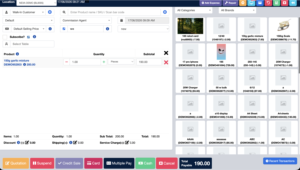
After closing the popup, POS should update the product line.
Recommended display:
| Product | Qty | Unit Price | Discount | Final Price |
|---|---|---|---|---|
| 150g garlic mixture | 1 | Rs 200.00 | Rs 10.00 | Rs 190.00 |
4. Why This Feature Is Useful
Without this feature, staff may directly reduce the selling price. That makes reporting unclear.
With this feature:
| Benefit | Explanation |
|---|---|
| Better control | Original selling price is preserved |
| Clear discount tracking | Price reduction is recorded as discount |
| Sales reports become accurate | Managers can see how much discount was given |
| Prevents hidden price changes | Cashier cannot silently change product price |
| Useful for approvals | Discount amount can be checked later |
5. Important Business Rule
This feature should apply only when:
Entered Selling Price < Default Selling PriceExample:
| Default Price | Entered Price | Result |
|---|---|---|
| 200 | 190 | Rs 10 discount |
| 200 | 200 | No discount |
| 200 | 210 | No discount, price increased |
Still stuck? How can we help?
Last updated:
Was this article helpful to you?