
Cheque Report
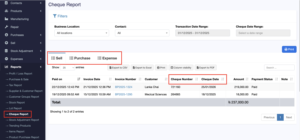
The Cheque Report in NEXA provides a centralized view of all cheque-based transactions across Sales, Purchases, and Expenses.
It helps administrators track cheque details, payment status, and totals with precision.
Purpose of the Cheque Report
This report is designed to:
- Monitor cheque payments in one place
- Track post-dated and cleared cheques
- Reconcile cheque payments against invoices
- Support auditing, finance review, and reporting
Only users with report access permissions can view this module.
Filters (Top Section)
You can narrow down the report using these options:
- Business Location: Choose a branch or view all branches.
- Contact: Select a customer or supplier, or keep All.
- Transaction Date Range: Filters by the date the payment was entered into the system.
- Cheque Date Range: Filters by the date written on the cheque (useful for post-dated cheques).
Report Tabs
The report is split into three sections:
- Sell – Cheques received from customers
- Purchase – Cheques given to suppliers
- Expense – Cheques used to pay expenses
Click a tab to see only that type of cheque payment.
What Each Column Means
- Paid On – When the cheque payment was recorded
- Date – Date of the related invoice
- Reference No – Invoice/Purchase/Enpense reference number
- Customer – Customer or supplier name
- Cheque Number – Number printed on the cheque
- Cheque Date – Date written on the cheque
- Amount – Cheque amount
- Payment Status – Shows whether the Invoice is paid or pending
- Note – Any extra comments
Total Amount
At the bottom of the table, NEXA shows the total cheque amount for the selected filters and tab.
Still stuck? How can we help?
Last updated:
Was this article helpful to you?