
This feature allows the same product to be sold at different selling prices based on Lot Number / Batch Number / Expiry Date.
Example:
| Lot No | Expiry Date | Available Qty | Selling Price |
|---|---|---|---|
| 30032 | 25/09/2026 | 4 | Rs. 250 |
| 30023 | 30/10/2026 | 12 | Rs. 240 |
| – | 30/04/2027 | 3 | Rs. 255 |
Step 1: Enable Lot Number
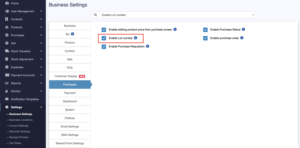
Go to: Settings → Business Settings → Purchases
Enable: Enable Lot number
This setting is required to manage products with different batch/lot numbers, expiry dates, and selling prices.
Step 2: Add Purchase with Different Selling Prices
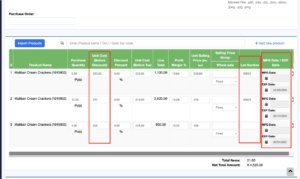
Go to: Purchases → Add Purchase
Search and add the product.
For each batch/lot, enter the product in a separate row and fill:
| Field | Description |
|---|---|
| Purchase Quantity | Quantity received for that lot |
| Unit Cost | Purchase cost of the lot |
| Unit Selling Price | Selling price for that lot |
| Lot Number | Batch/Lot number |
| MFG Date | Manufacturing date, if available |
| EXP Date | Expiry date, if available |
Example:
| Product | Qty | Unit Cost | Selling Price | Lot No | Expiry Date |
|---|---|---|---|---|---|
| Maliban Cream Crackers | 5 | 220 | 250 | 30032 | 25/09/2026 |
| Maliban Cream Crackers | 12 | 210 | 240 | 30023 | 30/10/2026 |
| Maliban Cream Crackers | 4 | 225 | 255 | – | 30/04/2027 |
Then save the purchase.
Step 3: Sell Product in POS
Go to: Sell → POS
Search and select the product.
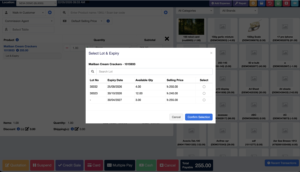
If the product has multiple lots or expiry dates, NEXA will automatically open the Select Lot & Expiry popup.
The popup will show:
| Column | Description |
|---|---|
| Lot No | Product batch/lot number |
| Expiry Date | Expiry date of the stock |
| Available Qty | Current available stock in that lot |
| Selling Price | Selling price assigned to that lot |
| Select | Choose the required lot |
Select the required lot based on the selling price or expiry date.
Click: Confirm Selection
Then finalise the bill.
Final Result
After selecting the lot, the product will be added to the POS bill with the correct selling price.
This allows the same product to be sold with multiple prices depending on:
- Lot Number
- Expiry Date
- Purchase Batch Price
Important Notes
- Lot Number must be enabled before using this feature.
- Each different selling price should be entered as a separate lot row during purchase.
- POS price will be selected based on the chosen lot.
- This is useful for products with changing purchase costs, expiry-based stock, or batch-wise pricing.