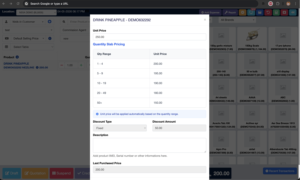
This discount type lets you set different unit prices based on purchase quantity.
Meaning: when quantity increases, the selling price can reduce automatically.
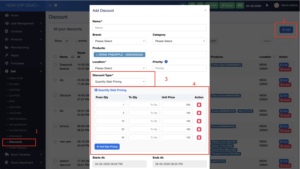
Step 1: Open Discount Page
From the left sidebar: Sell → Discounts
This opens the Discount list page.
Step 2: Click Add
Click the + Add button on the top-right side.
A popup window named Add Discount will open.
Step 3: Fill Discount Basic Details
Fill the required fields:
| Field | What to enter |
|---|---|
| Name | Discount name, e.g. Pineapple Slab Discount |
| Brand | Select brand if applicable |
| Category | Select category if applicable |
| Products | Select the product/products for this discount |
| Location | Select the business location |
| Priority | Used when multiple discounts apply (Default is 1) |
Important: Products and Location should be selected correctly. Otherwise, the discount may not apply during sale/POS.
Step 4: Select Discount Type
In Discount Type, choose: Quantity Slab Pricing
After selecting this, the Quantity Slab Pricing table will appear.
Step 5: Add Quantity Slabs
In the slab table, enter quantity ranges and unit prices.
Example setup:
| From Qty | To Qty | Unit Price |
|---|---|---|
| 1 | 4 | 200 |
| 5 | 9 | 195 |
| 10 | 19 | 190 |
| 20 | 49 | 180 |
| 50 | leave empty or max qty | 150 |
Correct way to understand it
- From Qty = starting quantity for that price.
- To Qty = ending quantity for that price.
- Unit Price = price per item for that quantity range.
Example:
If customer buys 7 units, system should apply 195 as unit price.
If customer buys 25 units, system should apply 180 as unit price.
Step 6: Add More Slabs
Click: + Add Slab Pricing
Use this when you need more quantity levels.
Use the red delete icon to remove unnecessary rows.
Step 7: Set Start and End Date
At the bottom, select:
| Field | Purpose |
|---|---|
| Starts At | When the discount becomes active |
| Ends At | When the discount expires |
Make sure the current date is inside this range. Otherwise, the discount will not work.
Step 8: Save the Discount
After entering all details, click the save button at the bottom of the popup.
Important Validation Rules
Before saving, check these:
- No overlapping quantity ranges
Wrong example:1–10and5–20 - No missing ranges unless intentional
Example:1–4,5–9,10–19is clean. - Unit price must be lower or equal for higher quantity
Example:1 = 200,5 = 195,10 = 190 - Product and location must match POS/Sale location
- Discount date must be active