
Clear Cache Extention – Google Chrome
Step 1: Install the Extension
- Go to the extension link:
Clear Cache Extension on Chrome Web Store - Click the “Add to Chrome” button.
- Click “Add extension” in the popup.
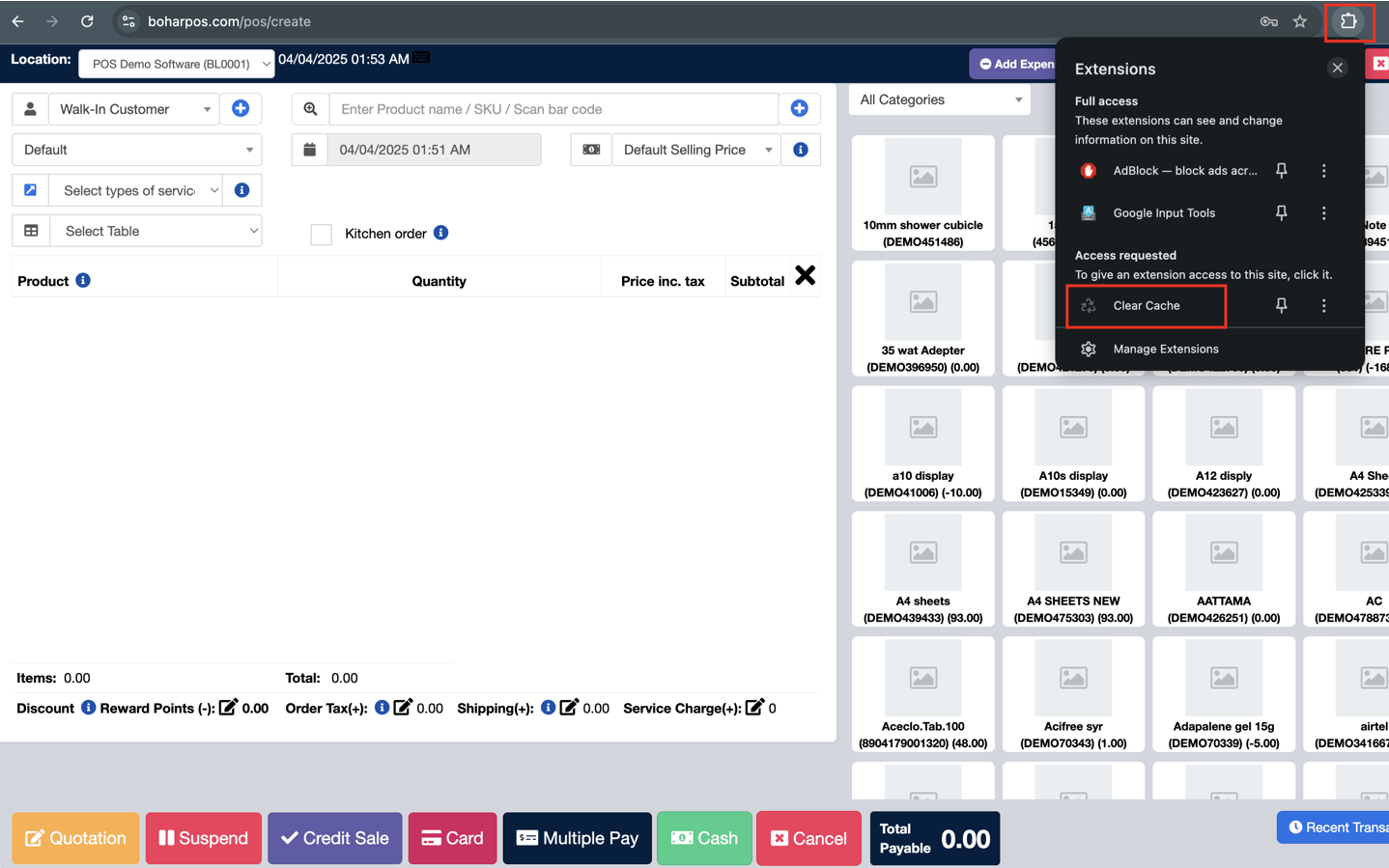
- Once installed, you???ll see a broom icon in the Chrome toolbar (top right).

Step 2: Use the Extension to Clear Cache
- Click the broom icon in your Chrome toolbar.
- The extension automatically clears the cache without confirmation (by default).
- You???ll see a quick flash/reload ??? that???s it working.
Step 3: Customize Settings
- Right-click the broom icon, then click “Options”.
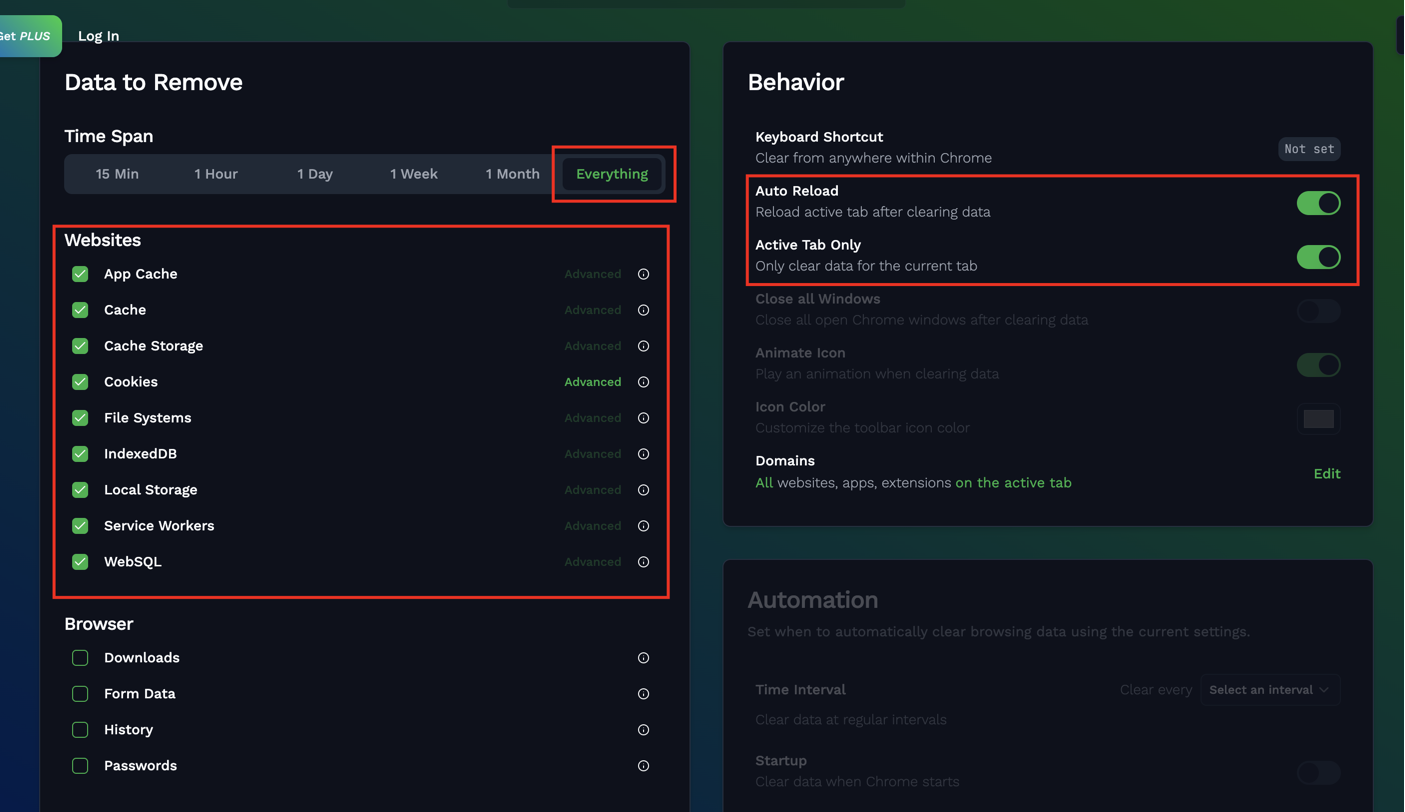
- You can now configure what gets cleared:
- App cache
- Cache
- Cookies
- Downloads
- File Systems
- Form data
- History
- Indexed DB
- Local storage
- Passwords
- Plugin Data
- WebSQL
- You can also adjust:
- Time period everything
- Auto Reload: Whether to reload the page automatically after clearing.
- Active Tab Only: Clear the cache data only the active tab
Step 4: Clear Cache
- Go to the NEXA ERP link: nexa login
- Click the broom icon in your Chrome toolbar.
- The page will automatically refresh.
- Now, try logging in again.
Still stuck? How can we help?
Last updated:
Was this article helpful to you?